Creating an Encoding Session
A session tracks your work encoding a specific halachic topic through the five-phase workflow.
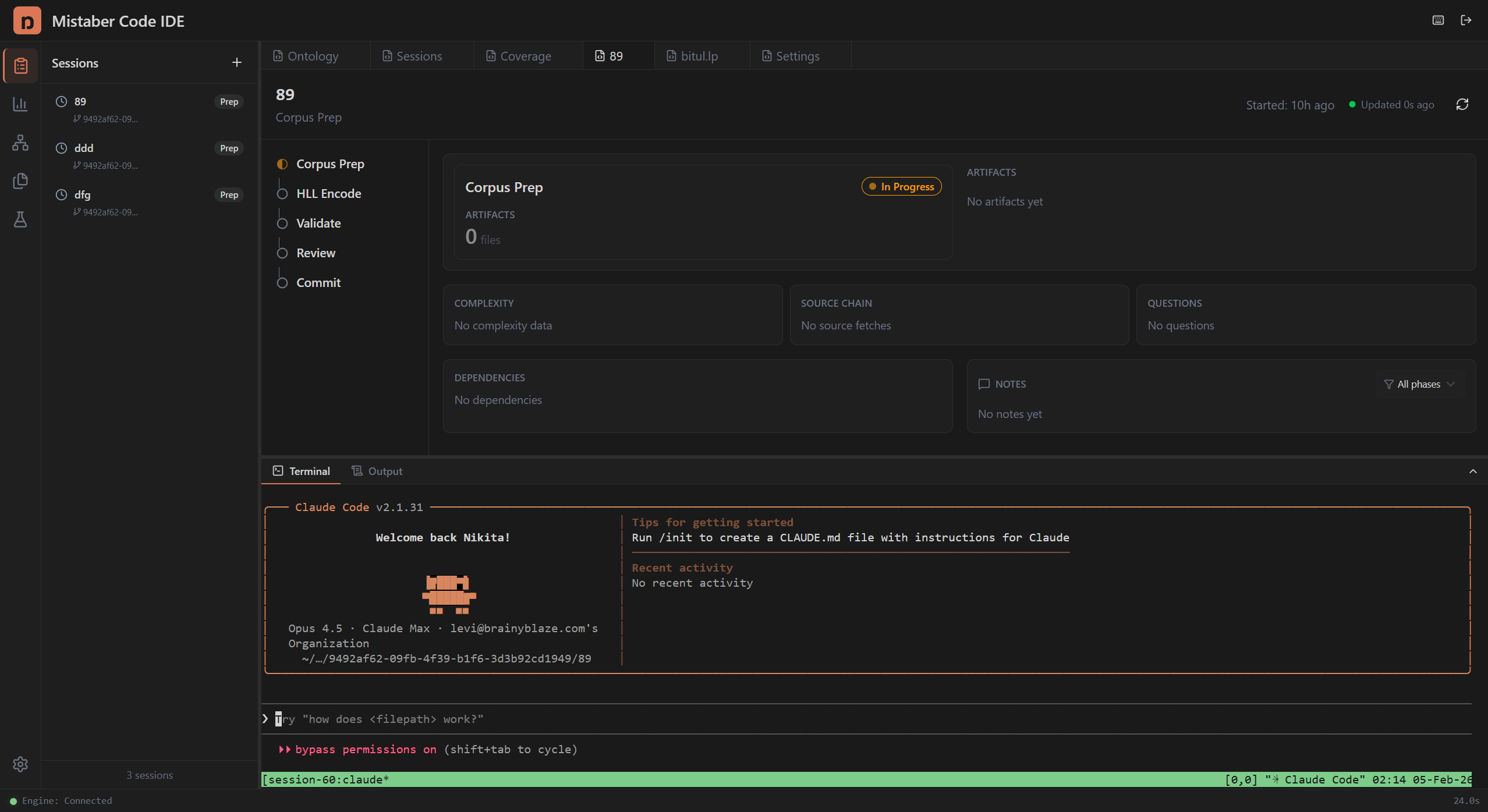
Opening the Sessions Panel
Click the Sessions icon (clipboard) in the Activity Bar. The Sessions Panel lists all your sessions.
Creating a New Session
- Click the + button at the top of the Sessions Panel.
- Enter a session name (e.g., "YD 87:1 — Basar BeChalav").
- The dashboard creates the session with:
- A dedicated git branch for isolated work
- A terminal connected to the session's worktree
- Phase tracking starting at Corpus Preparation
Understanding Session Status
Each session in the list shows:
- Phase icon (colored) — indicates current workflow phase
- Session name (bold) — the name you chose
- Phase badge — current phase label with color coding
Below the name, status indicators appear:
- Git branch (branch icon) — the session's branch name
- Terminal active (green terminal icon) — terminal is running
- Error (red alert icon) — something went wrong; hover for details
Session Phases at a Glance
| Phase | Icon | Color | Meaning |
|---|---|---|---|
| Corpus Prep | Clock | Gray | Gathering and preparing sources |
| HLL Encode | Play | Yellow | Writing HLL encoding rules |
| Validate | Play | Blue | Running validation tests |
| Review | Pause | Purple | Awaiting human review |
| Commit | Check | Green | Finalized and committed |
Session Statuses
- Initializing — session is being set up (spinning indicator)
- Ready — prepared, waiting for you to begin
- Active — work in progress
- Paused — temporarily stopped
- Completed — all phases finished
- Error — something failed; check the error message
Tips
- Name sessions after the siman and seif you encode for easy identification.
- One session per seif keeps the scope manageable.
- You can have multiple sessions open. Click any session to switch to it.