Terminal and Bottom Panel
The Bottom Panel sits below the Editor Area and contains three tabs: Terminal, Output, and Problems. Toggle it with Ctrl+`. Drag the horizontal divider to resize, or maximize it to fill the editor area.
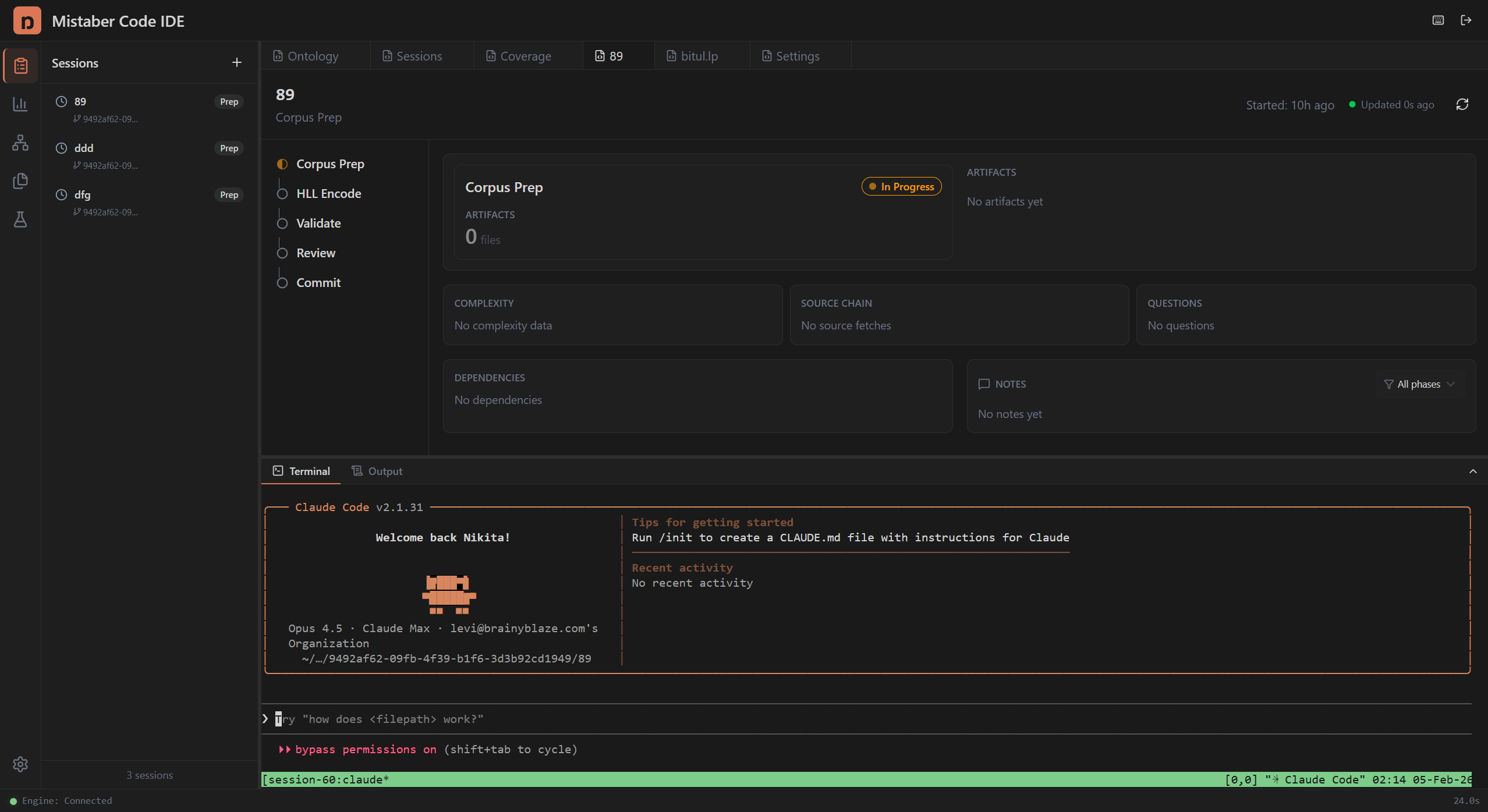
Terminal
The Terminal tab provides a command-line interface inside your encoding session. It runs in your session's dedicated git worktree, giving you isolated access to the Mistaber toolchain and the Claude Code agent.
Opening the Terminal
- Press Ctrl+` to toggle the Bottom Panel
- Select the Terminal tab
- Press Ctrl+` again to hide it
Terminal Basics
The terminal is a full Linux shell running inside a tmux session. It supports:
- Running Mistaber CLI commands (mistaber query, mistaber compile, etc.)
- Executing tests (pytest)
- Git operations within your session's branch
- Any standard shell command
Session-Specific Terminals
Each encoding session gets its own terminal, connected to that session's git worktree. When you switch sessions, the terminal switches too. This means: - Files you edit in the terminal belong to the session's branch - Tests run against the session's encoding, not the main branch - Git commits go to the session's branch
Using Claude Code
The terminal comes with the Claude Code agent available. Claude Code can help you: - Write and debug encoding rules - Run validation queries - Explain ASP derivations - Fix compilation errors
Type claude in the terminal to start an agent session.
Maximizing the Terminal
Click the maximize button or use the keyboard to expand the terminal to fill the entire Editor Area. This is useful when running long test suites or working extensively in the command line. Toggle back to restore the editor view.
Persistence
The terminal session persists across page refreshes and browser restarts. If you close your browser and come back later, your terminal history and running processes are still there (backed by tmux on the server).
Tips
- Use Ctrl+` frequently to toggle between editor and terminal
- Maximize the terminal when running long commands, then restore when done
- The terminal reconnects automatically if the connection drops (up to 5 retries)
- Clickable URLs in terminal output open in your browser
Output Panel
The Output tab shows results from query execution and other background operations. When you run a query in the Query Executor, the raw output appears here. Use this tab to review detailed results that don't fit in the compact results card.
Problems Panel
The Problems tab lists compilation errors and warnings from your encoding files. Each entry shows: - Severity — error (red) or warning (yellow) - Message — what went wrong - Location — the file and line where the problem occurred
Fix problems listed here before advancing to the Validation phase. The panel updates automatically when you save files.